The first thing people assume when they want to try Milky Way photography is that they need a new phone.
They do not.
The phone in your pocket right now is almost certainly capable of capturing the Milky Way. Even if it is a few years old. Even if it cost you very little. I have seen stunning competition-winning shots taken on phones that most people would consider outdated.
What separates a great night sky photo from a blurry mess is not the hardware. It is knowledge and planning. Get those right, and your old phone will surprise you.
Why your old phone is good enough
When people ask “can my phone photograph the Milky Way?”, they are really asking “is my sensor good enough?” That is the wrong question.
The things that genuinely make or break a Milky Way shot are:
- Dark skies — light pollution drowns out the Milky Way regardless of what phone you have
- Timing — the core only rises at certain months of the year, and a full moon wipes it out
- A steady mount — camera shake at a 20-second exposure is catastrophic on any device
- Basic settings — ISO, shutter speed, and focus, set correctly
None of those require a flagship phone.
Megapixels are largely irrelevant for nightscape photography. A phone with a 12MP sensor and a fast lens will outperform a 50MP phone with a slow one. Newer computational photography modes help, but they are not the ceiling — they are a convenience.
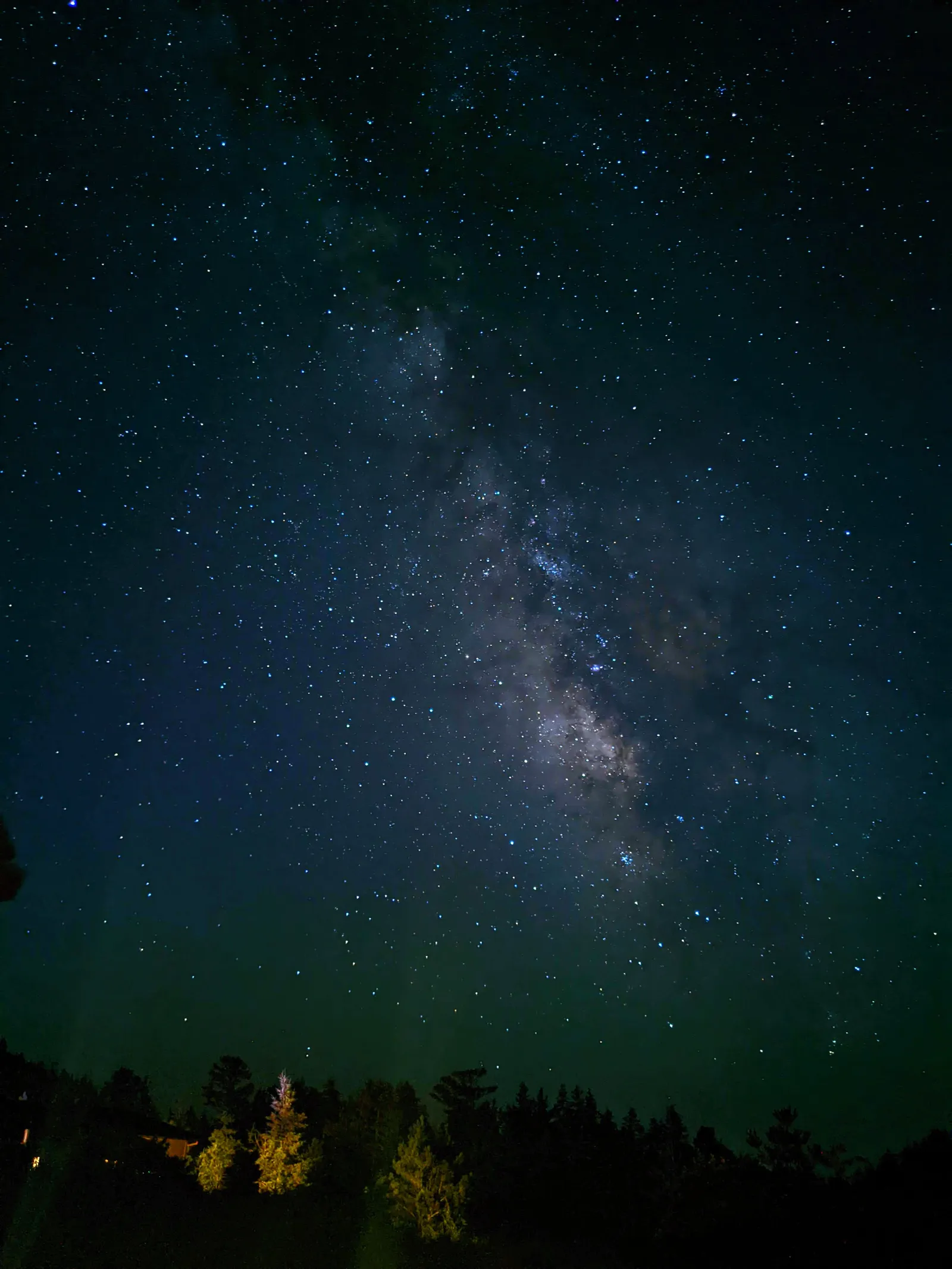 Google Pixel 4a, Astrophotography mode. Photo: Sandra Regan, Smartphone Astrophotographer of the Year.
What to do if your phone has no dedicated astro mode
Newer Pixel, Samsung Galaxy Ultra, and Xiaomi phones have built-in astrophotography modes. If yours does not, that is fine — a free manual camera app fills the gap entirely.
On Android, download ProCam X (free tier works well). It gives you full manual control: ISO, shutter speed, white balance, and RAW output.
On older iPhones (iOS 16 and under), the native camera does not support manual shutter speeds. Use NightCap Camera or Halide instead. Both let you dial in the exposure you need.
The point is simple: the limitation of your phone’s stock camera app is not the same as the limitation of your phone’s sensor. A free app unlocks what the hardware can already do.
The settings that matter on a basic phone
Once you have a manual app open, these are the only settings you need to think about:
Tripod or steady surface — non-negotiable. Any movement during a 20-second exposure ruins the shot. A cheap flexible mini tripod costs a few pounds and works perfectly.
Shutter speed: 15 to 30 seconds — long enough to gather light, short enough that stars stay as points rather than trails. Start at 20 seconds.
ISO: 1600 — a reasonable starting point for most phones. You may need to push to 3200 in very dark skies, but go higher than that and noise becomes the problem.
RAW (if available) — shoot RAW if your phone and app support it. It gives you far more room to recover detail and reduce noise in editing. A JPEG is a processed, compressed file. A RAW is the raw sensor data.
Timer: 3 seconds — set a self-timer so your tap does not shake the phone at the start of the exposure.
That is it. Five settings. You do not need to understand every menu option — just those five.
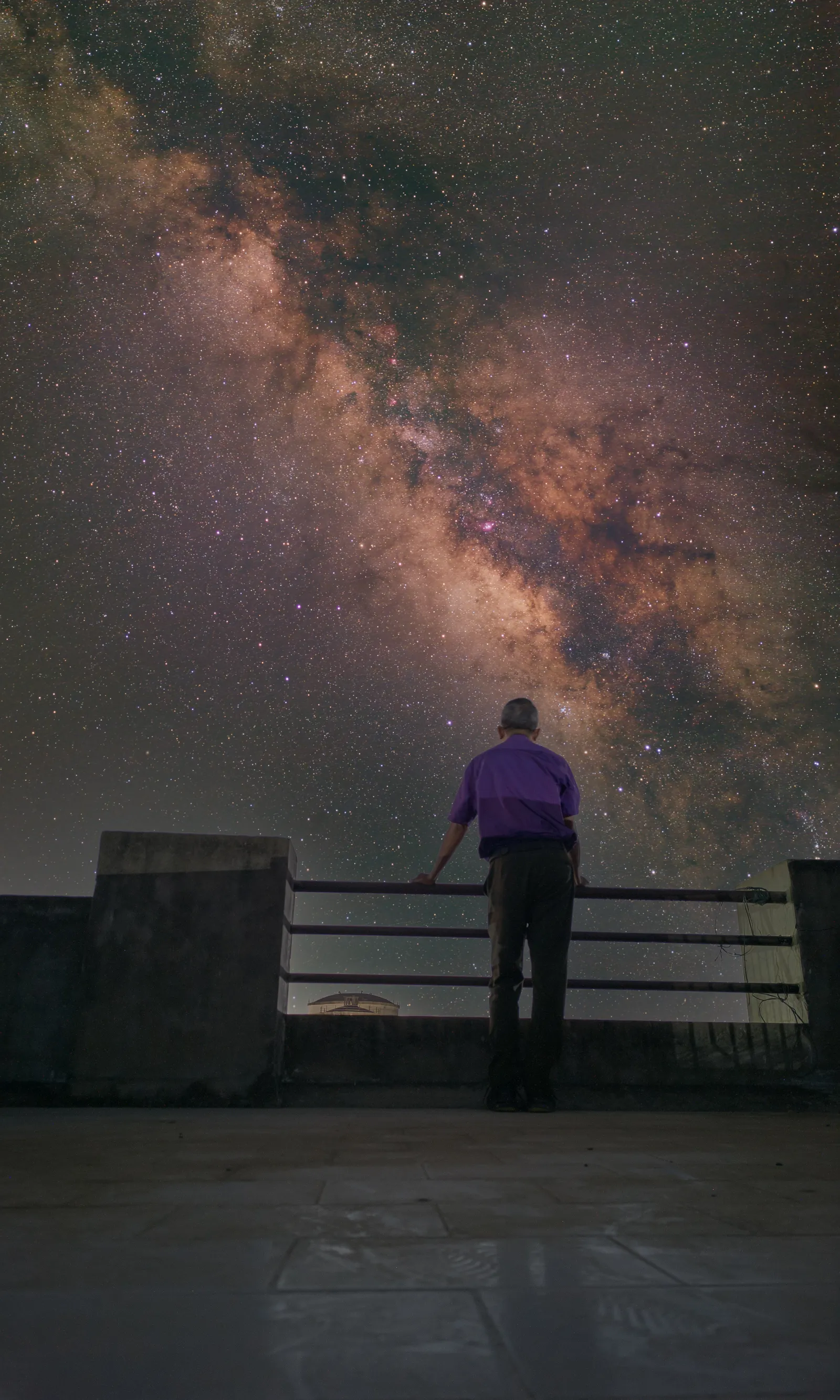 Redmi Note 13 Pro+, Manual mode, 30s x 780 frames stacked, ISO 1600. Photo: Samit Saha, Smartphone Astrophotographer of the Year.
Lean on planning and editing to close the gap
A newer phone buys you a little more dynamic range and a little less noise. Good planning buys you an image that is possible to take at all. These are not equal trades.
Find dark skies. Light pollution is your biggest enemy. Use the Light Pollution Map or the Skysafari app to find a dark site within driving distance. Even a 20-minute drive from a town centre makes a real difference.
Time it right. The Milky Way core is visible from roughly March to October in the northern hemisphere, and it rises and sets through the night. Plan when the core will be up and where it will sit using an app like Stellarium or PhotoPills.
Shoot near a new moon. A full moon is as bright as street lighting in the sky. A new moon period gives you the darkest conditions.
Edit your RAW file. This is where budget phones close the gap significantly. I took an old shot from my Google Pixel 3a, one I had captured in my light-polluted back garden, and applied a few minutes of basic edits in Lightroom Mobile. The transformation was dramatic. Stars came forward, the core became visible, the foreground gained depth — and that was not even a RAW file. With a RAW, you can do even better. Processing is not cheating. It is half the craft.

How to get into astrophotography for free, including nightscape photography on your phone.
Real proof: my Pixel 3a and the SAOTY winners
I used a Google Pixel 3a for years. By the time I retired it the phone was so old it had stopped receiving security updates. The camera, though, was still excellent.
I took a photo with that 3a in my back garden one evening — heavily light polluted, nothing special about the conditions. In one click with no processing, you can faintly see the Milky Way core. Not a competition winner, but proof that an old, budget phone in imperfect conditions can still capture what you are after. Add a dark sky and a proper edit, and the story changes entirely.
Competition entrants regularly demonstrate the same thing. Sandra Regan shot on a Pixel 4a. Samit Saha produced extraordinary stacked images on a Redmi Note 13 Pro+. Sabau Daniela entered on a Pixel 7a.
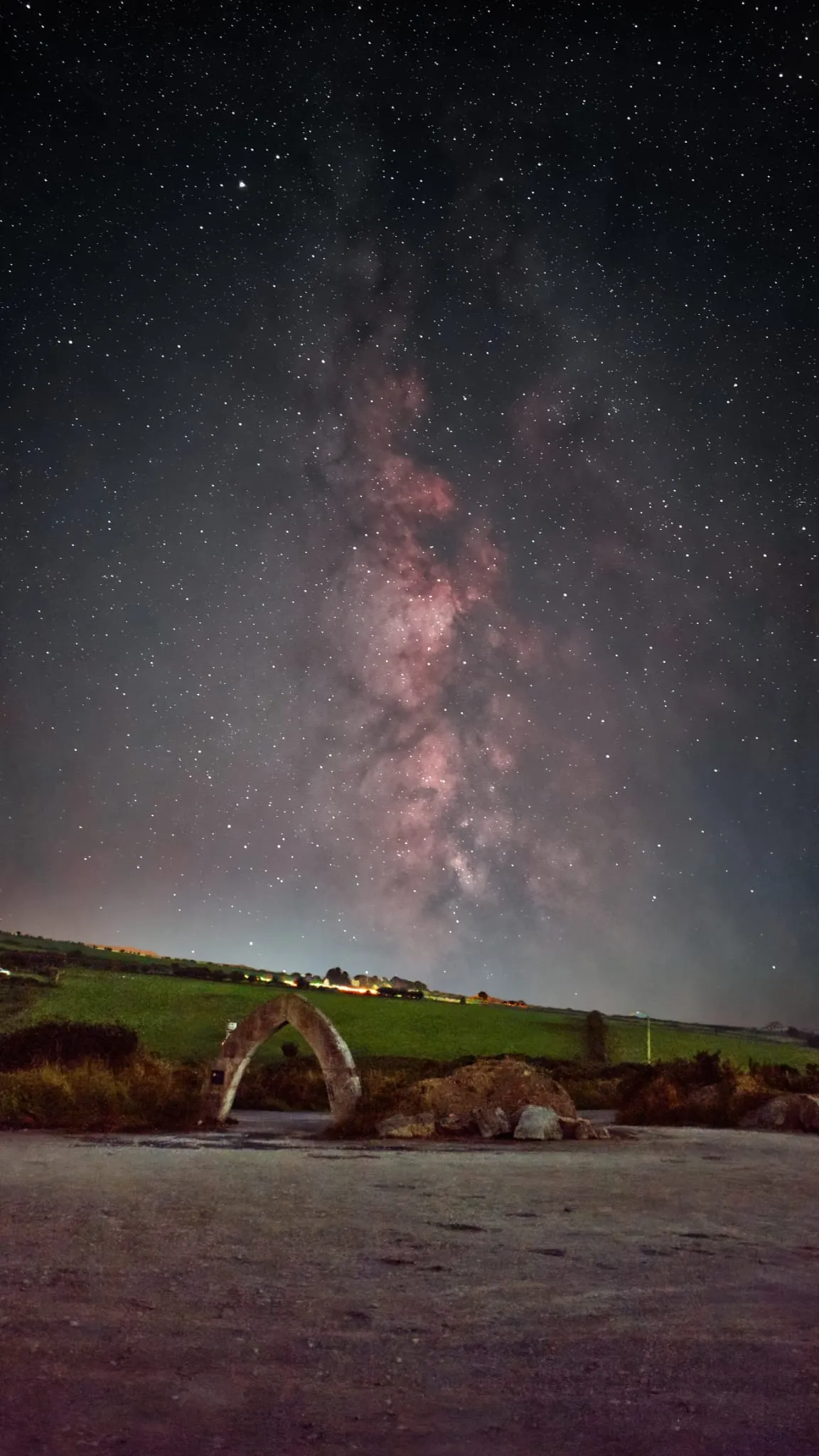 Google Pixel 7a, Astrophotography mode. Photo: Sabau Daniela, Smartphone Astrophotographer of the Year.
These are not outliers. They are a pattern. Knowledge and planning are the secret weapon, not having the latest and greatest.
Do not put this off waiting for perfect conditions either. If the sky is clear tonight, go outside and have a go. You may not get a perfect Milky Way shot, but you will get comfortable with the settings, learn something, and have a baseline to improve from. That practice compounds fast.
Frequently asked questions
What is the cheapest phone that can photograph the Milky Way? Any smartphone made in the last six to eight years with a manual or night mode will work. Even a basic Android with a manual camera app installed is enough to get started. A budget phone from a reputable brand like Xiaomi, Motorola, or older Google Pixel lines will do the job with the right technique.
Do I need night mode on my phone? No. Night mode is a convenience, not a requirement. A manual app with the right settings achieves the same result and often gives you more control. Night mode on many older phones is simply a software implementation of long-exposure stacking — something you can replicate manually.
Can a budget Android photograph the Milky Way? Yes. Budget Androids like the Redmi Note series, older Pixel models, and mid-range Samsungs are all capable. The key is a steady mount, dark skies, and correct settings. Shoot in RAW if possible and edit the result.
How old is too old? If your phone was made in the last seven or eight years, has a rear camera with at least an f/2.0 aperture, and can install apps from the Play Store or App Store, you are not limited by the hardware. You are limited by what you know — and that is fixable today.
Next steps
The best thing you can do right now is read through the full guide on how to photograph the Milky Way with your phone. It covers timing, location, and settings in more depth.
When you are ready to look at apps, the guide to the best astrophotography apps breaks down exactly what to use for manual shooting, planning, and editing on both Android and iOS.
And if you are genuinely curious about which phones push the boundaries, the best phones for astrophotography covers the current leaders — but read this page first, because most of them are not necessary.
The phone you have is enough. Go and use it.