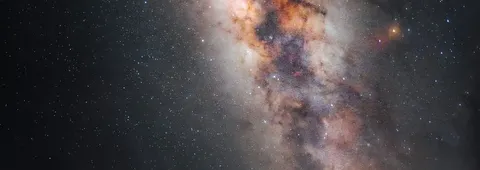
Your Google Pixel has a secret weapon built right into the camera app, and most people never use it.
Google Pixel Astrophotography mode does something remarkable in one tap: it focuses, optimises settings, takes multiple long exposures, stacks them, processes them, and hands you a finished Milky Way photo. The whole thing takes about four minutes while you stand there doing nothing.
No DSLR. No complicated settings. No experience required.
My phone is a Pixel 8 Pro, and I started shooting with a Pixel 3a before that. Even that older phone could pick up the Milky Way core from my light-polluted back garden. The mode has been getting better with every generation, but honestly any Pixel going back to the 3 is capable of impressive results.
This guide covers exactly how to trigger the mode, what actually happens during a capture, and how to push further with manual RAW stacking when you want more control.
For a wider view of smartphone astrophotography (covering iPhones, Samsungs, and more), see the full guide: How to Photograph the Milky Way With Your Phone.
Which Pixel Phones Support Astrophotography Mode?
Astrophotography mode has been available since the Pixel 3. It works across the whole range: Pixel 3, 3a, 4, 5, 6, 7, 8, 9 and beyond.
The results do improve on newer hardware. The Pixel 7 onwards gave a noticeable jump in detail and noise handling. But do not let that stop you if you have an older model. The competition photos later in this article include shots from a Pixel 4a and a Pixel 7, both excellent.
If you are weighing up whether to upgrade, check out the best phones for astrophotography for a full comparison.
How to Trigger Google Pixel Astrophotography Mode
This is the part that trips people up: you cannot turn Astrophotography mode on yourself. The phone decides when to activate it based on conditions.
Here is what triggers it:
- The phone must be completely still (on a tripod, or propped against something solid).
- It must be pointed at a dark sky.
- You must be in Night Sight mode.
When those three conditions are met, the capture button changes from a moon icon (regular Night Sight) to a stars icon (Astrophotography mode). That icon switch is the only visual confirmation that you are in the right mode.
The full step-by-step:
- Mount your phone on a tripod and point it at the sky.
- Open the Camera app and swipe to Night Sight (also called “Night” on some software versions).
- Wait a few seconds. If conditions are right, the shutter button changes from a moon to a stars icon.
- Tap the stars icon to start the capture.
- Leave the phone completely undisturbed for roughly four minutes while it works through its exposure sequence.
- The finished image saves automatically to your gallery.
If the stars icon does not appear:
- Stay in Night Sight and tap the small cog icon at the bottom left.
- Find the Astrophotography setting.
- Make sure it is set to Auto (not Off). You cannot set it to “always on”, only confirm it is allowed to activate automatically.
Pro tip before you head out at night: Test this at home first by laying your phone face-down on a table. The camera sees darkness, the phone is perfectly still, and Night Sight will switch into Astrophotography mode. It is a great way to confirm the setting is correct before you are standing in a field at midnight.
Gallery: What Pixel Astrophotography Mode Produces
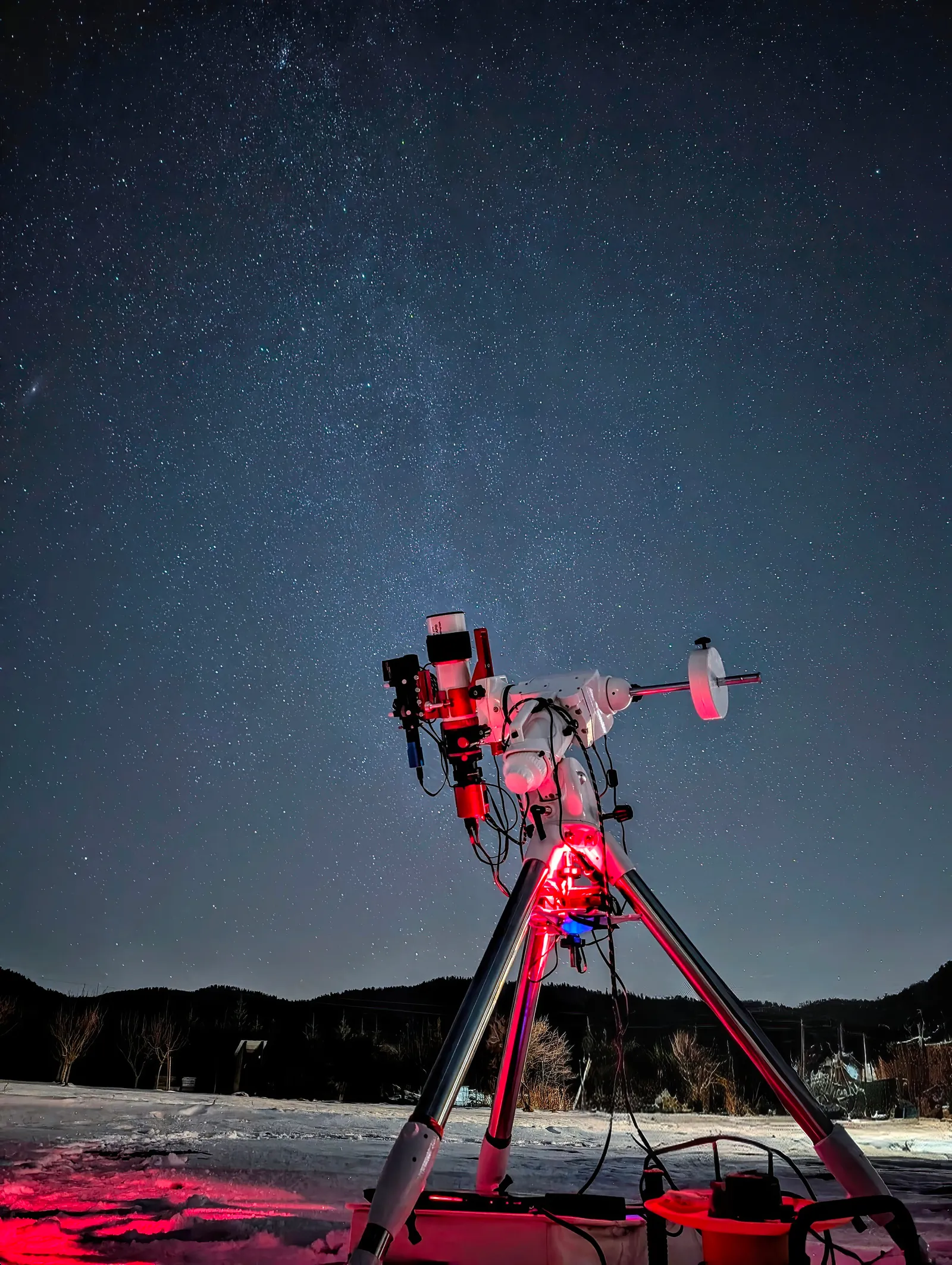 Google Pixel 8, Astrophotography mode. Photo: Martin Timko, Smartphone Astrophotographer of the Year.
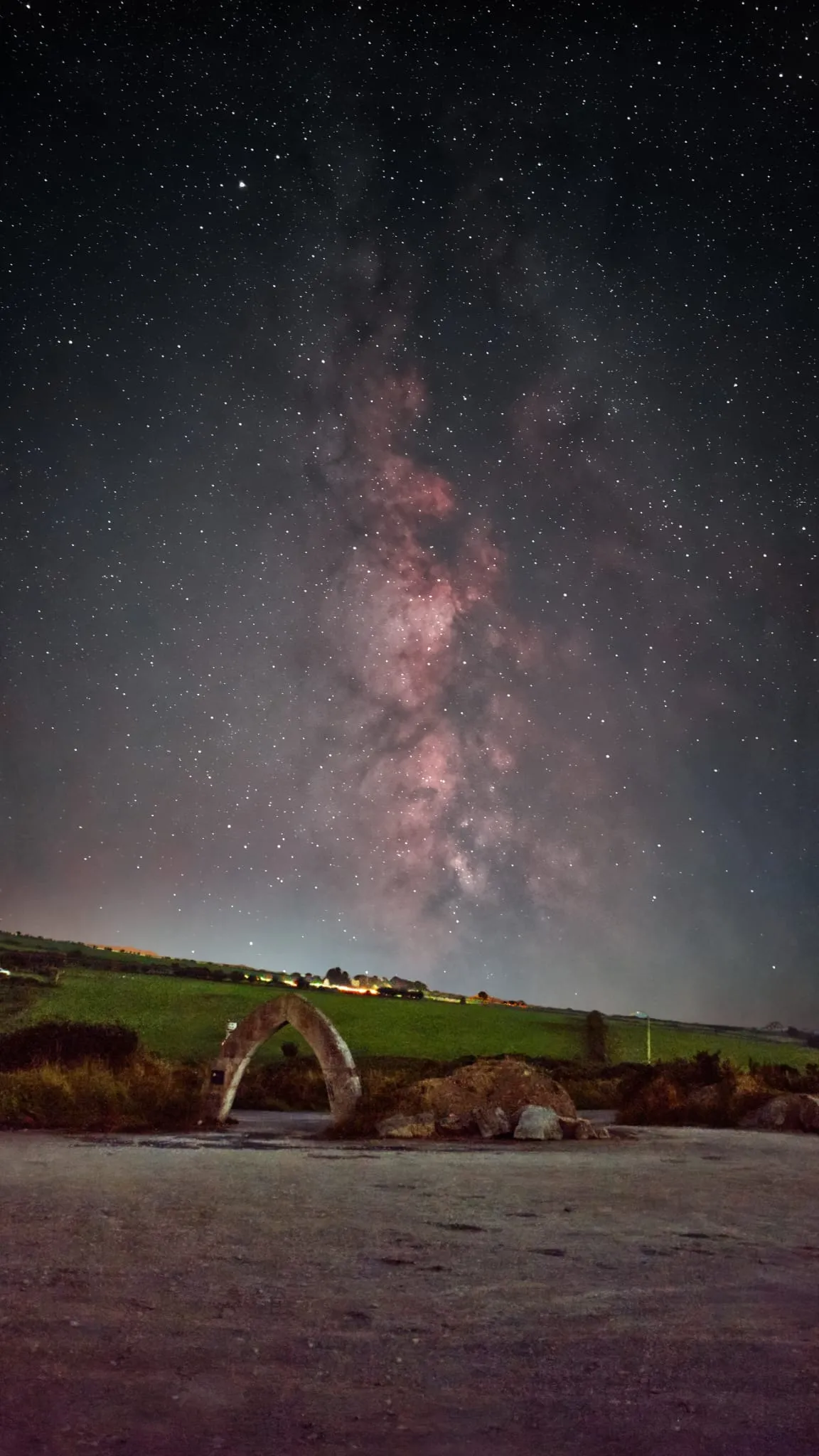 Google Pixel 7a, Astrophotography mode. Photo: Sabau Daniela, Smartphone Astrophotographer of the Year.
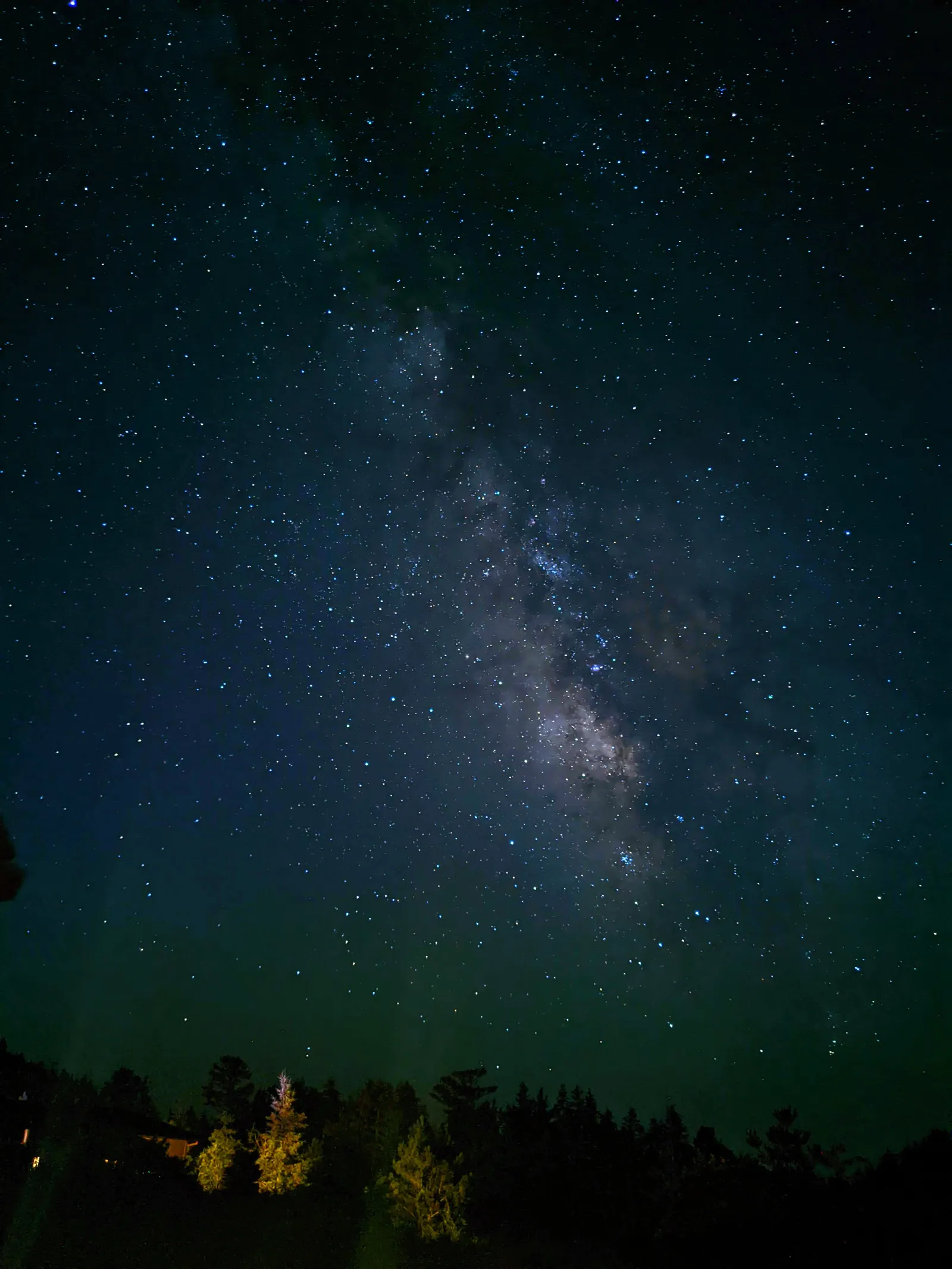 Google Pixel 4a, Astrophotography mode. Photo: Sandra Regan, Smartphone Astrophotographer of the Year.
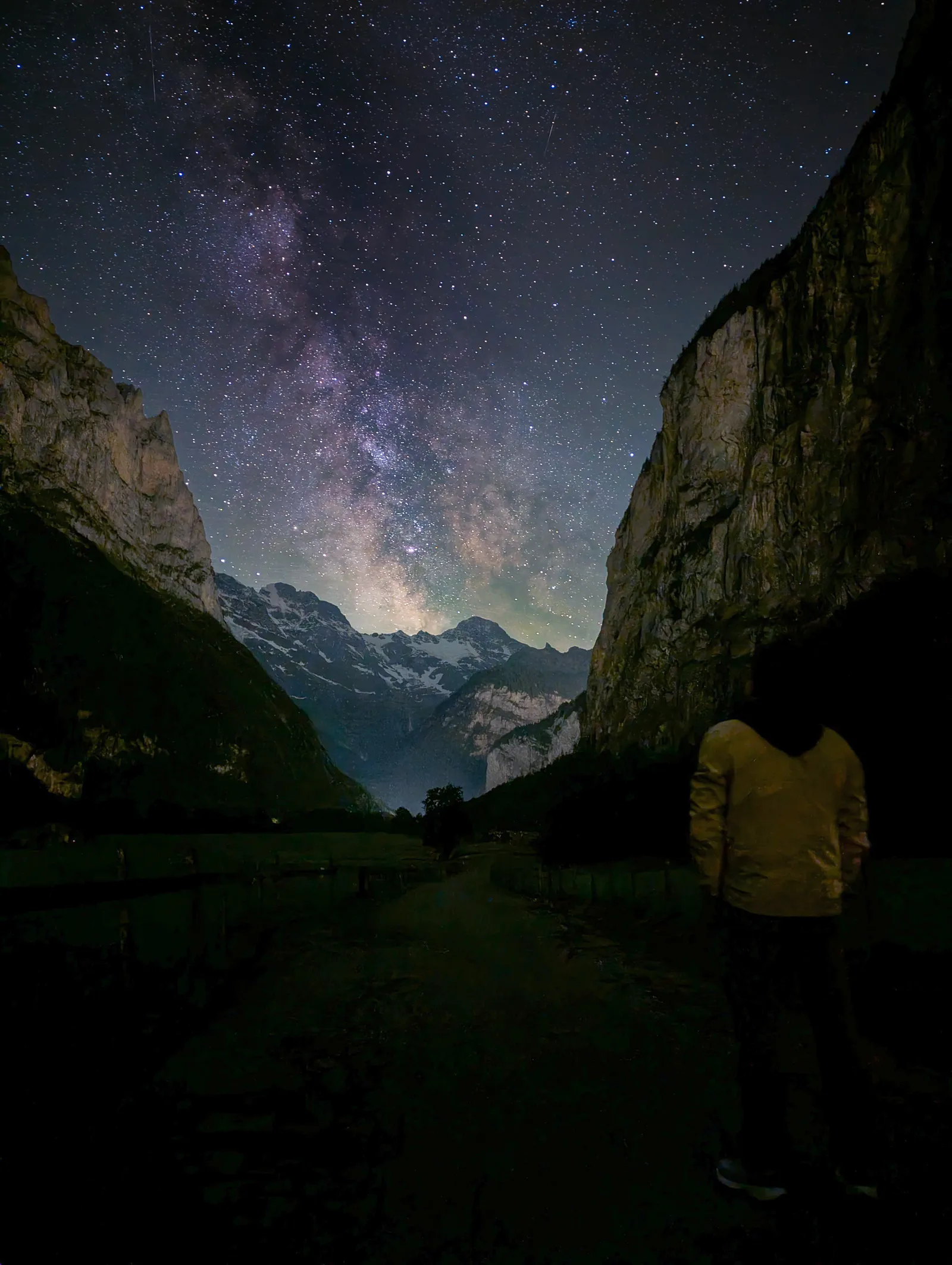 Google Pixel 7, Astrophotography mode. Photo: Nikita Galakhov, Smartphone Astrophotographer of the Year.
Across three different Pixel generations, one shared quality: the Milky Way is clearly visible, the foreground has detail, and these were all one-tap captures with no post-processing expertise needed.
Video Walkthrough

I walk through how to access Astrophotography mode on a Pixel (and Samsung and iPhone) step by step, with real examples from Smartphone Astrophotographer of the Year.
Getting the Best Results From Astrophotography Mode
The mode handles the technical heavy lifting, but a few things on your end make a real difference.
Use a tripod. This is non-negotiable. Even slight movement during the four-minute capture ruins the stacking process. A small flexible tripod like a Joby GorillaPod works well for a phone. The phone will not even enter Astrophotography mode if it detects movement.
Go dark. The mode works in light pollution, but it struggles against bright orange skies. Even getting twenty minutes outside a city dramatically improves results. Darker skies let the Pixel reveal more structure and colour in the Milky Way.
Wait for the right time. The Milky Way core is only visible in the UK from roughly April to September, and only rises high enough to photograph late evening through to early morning during that window. Check an app like Stellarium or PhotoPills to confirm the core is up before you go out.
Enable RAW. Astrophotography mode saves a processed JPEG by default, but enabling RAW gives you the uncompressed data to edit yourself. On a Pixel:
- Open the Camera app and tap the settings cog.
- Tap Pro.
- Set the file format to RAW+JPEG.
You get the quick JPEG for sharing immediately, plus the RAW file to develop properly in Lightroom Mobile or Snapseed. More on editing below.
Manual Mode: When You Want Full Control
Astrophotography mode is brilliant for simplicity, but some photographers want more creative control, faster results, or the ability to shoot in conditions the automatic mode finds marginal.
Evgeni Tcherkasski’s Pixel 8 Pro shots (below) are taken in full manual mode with RAW files stacked in post:
- ISO 3200
- f/1.7
- 16 seconds
- Between 14 and 25 frames stacked
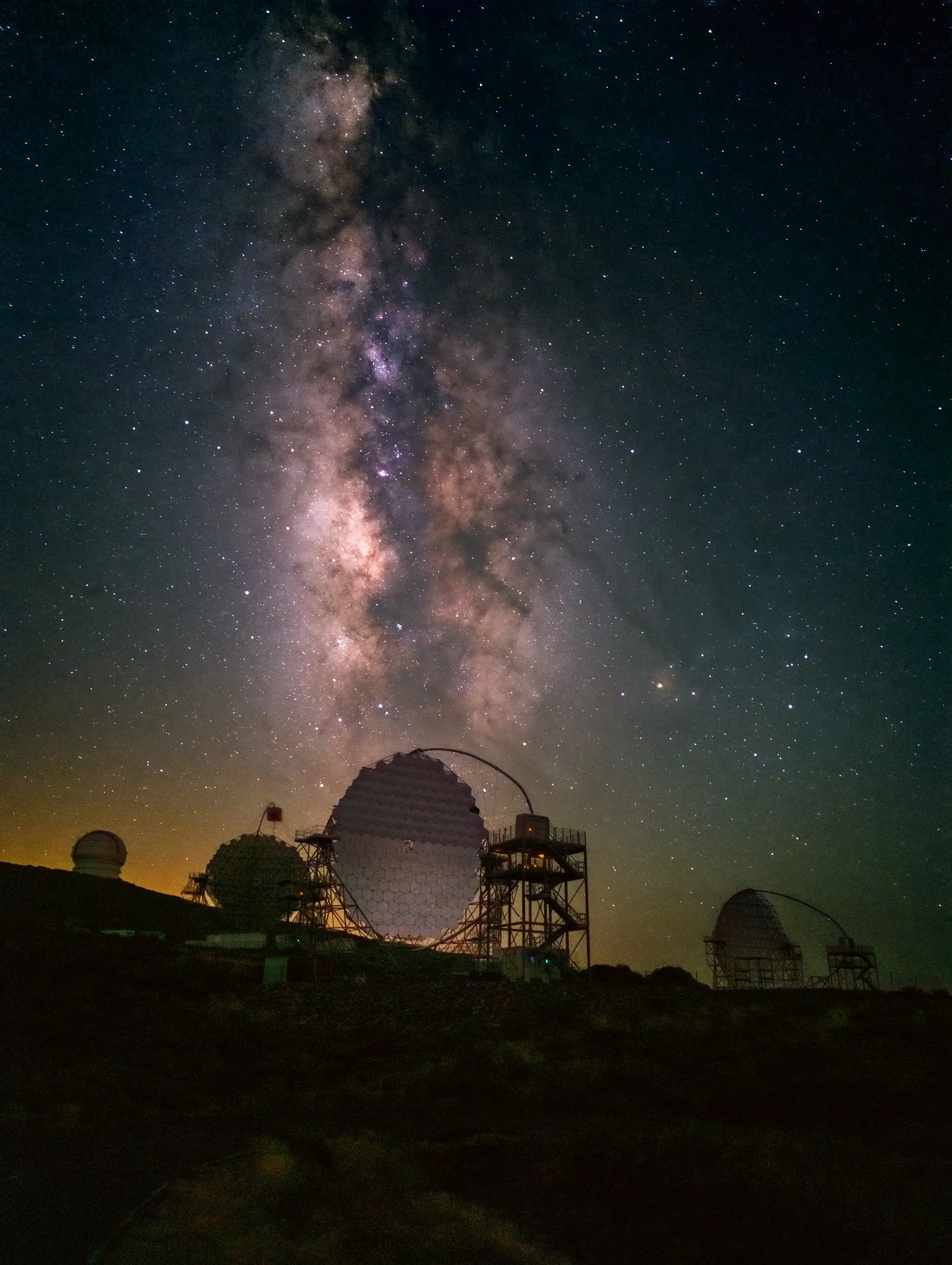 Google Pixel 8 Pro, manual mode, ISO 3200, f/1.7, 16s, 20 frames stacked. Photo: Evgeni Tcherkasski, Smartphone Astrophotographer of the Year.
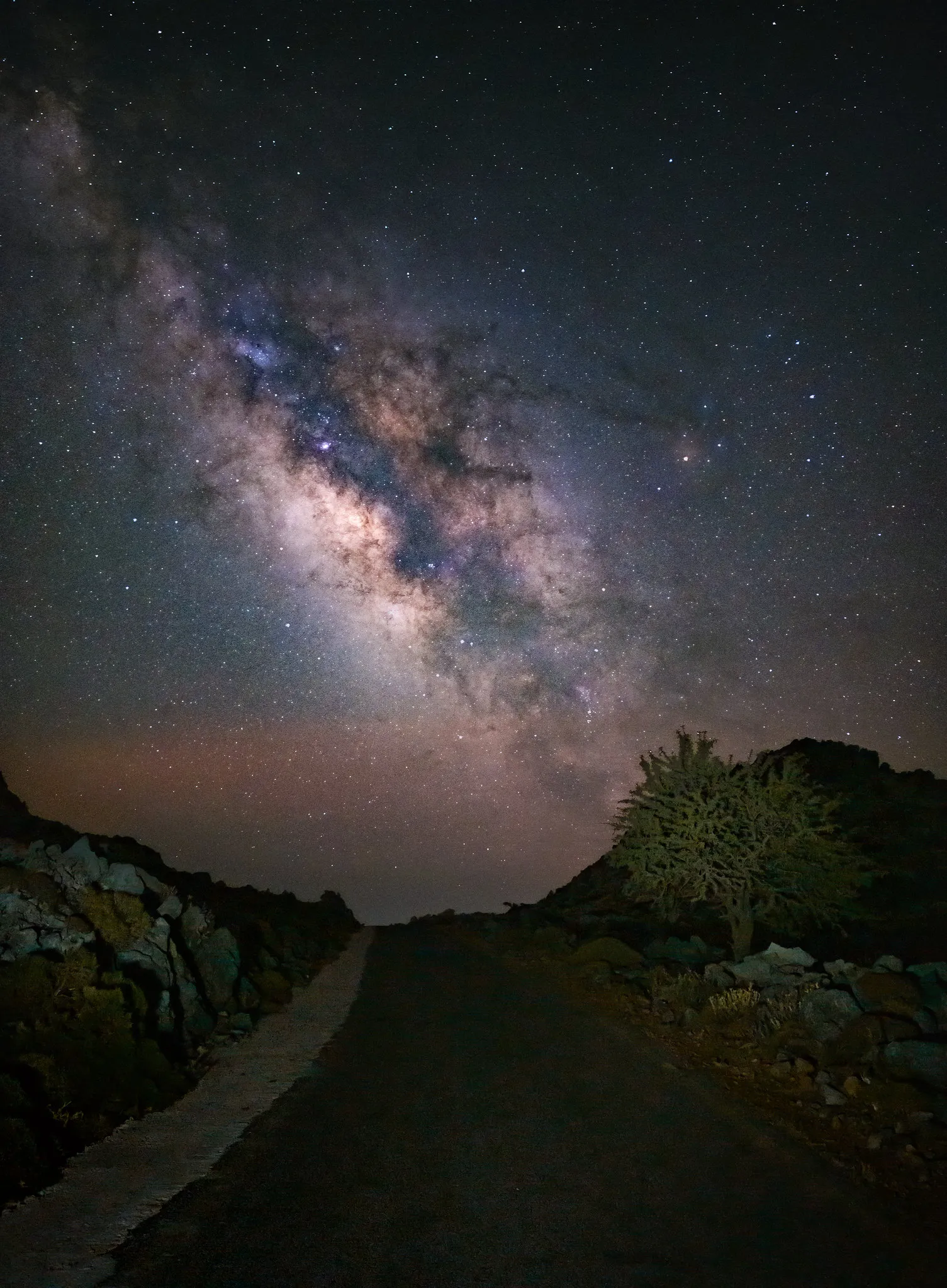 Google Pixel 8 Pro, manual mode, ISO 3200, f/1.7, 16s, 25 frames stacked. Photo: Evgeni Tcherkasski, Smartphone Astrophotographer of the Year.
To use manual mode on a Pixel, open the Camera app and look for Pro mode. Set ISO, shutter speed, and focus manually. Shoot RAW (as above), capture 15-25 frames, then stack them in an app like DeepSkyStacker (PC) or Sequator. It is more work, but the results at this level are genuinely comparable to entry-level dedicated cameras.
Editing Your Pixel RAW Files
A RAW file straight from the camera looks flat and dim. That is not a problem. It is just unprocessed data waiting for you to bring it to life.
Lightroom Mobile (free version is fine) is the most powerful option. Open the RAW file, pull up the Highlights slider, push Shadows up, add some Clarity and Dehaze. The Milky Way colour and structure are all there waiting.
Snapseed is free, simple, and does a surprisingly good job. The RAW developing tools are more limited, but the “Details” and “Tune image” tools get you most of the way there quickly.
Both apps are available on Android. For a deeper look at mobile editing workflows, see astrophotography apps for smartphones.
FAQ
Which Pixel phones have Astrophotography mode?
All Pixels from the Pixel 3 onwards. The mode runs on the same Night Sight framework across the whole range. Results improve on newer hardware, particularly from the Pixel 7 onwards, but older models are still very capable.
Why won’t Astrophotography mode appear?
Three things need to be true at the same time: the phone must be in Night Sight, it must be completely still, and it must be looking at a dark area of sky. If any of these is missing, the stars icon will not appear. Check your Astrophotography setting is set to Auto (not Off) in Night Sight settings. Also check you are not dealing with too much light pollution directly overhead.
How long does a Pixel Astrophotography mode capture take?
Roughly four minutes. The phone takes multiple long exposures during that time and stacks them automatically. You cannot speed this up. Just set the tripod, tap the shutter, and enjoy a few minutes under the stars.
Is the result a “real” photo?
Yes. The phone is stacking actual long-exposure data captured by its sensor. The computational processing (noise reduction, stacking, sharpening) is the same principle professional astrophotographers use with dedicated cameras, just automated. The photons hitting the sensor are real; the Milky Way you see in the result is genuinely there.
Can I use Astrophotography mode without a tripod?
No. The phone will not activate the mode if it detects any movement. A tripod is the one piece of extra kit that makes this whole thing possible. Even a very inexpensive one works.
Summary
Google Pixel Astrophotography mode is one of the most accessible ways to photograph the Milky Way. Set up on a tripod, open Night Sight, wait for the stars icon, tap once, and let the phone do its thing. Enable RAW capture to give yourself editing options, and head somewhere reasonably dark to get the best out of it.
If you want to go deeper into planning the shoot, finding dark sky locations and editing in detail, the full guide has it all: How to Photograph the Milky Way With Your Phone.